
Development Setup
Follow the sections for embedded and backend to setup a development environment for the CMB device and the backend, respectively.
Network Temporary
For now to connect the CMB device to a network turn your computer into a wifi hotspot with the
following credentials: SSID: test, Password: test12345. This is only temporary until we have a
better solution for provisioning the device.
Embedded
Power the ESP32 device and open a Serial Monitor (for example PlatformIO's built-in Serial Monitor in VSCode) with the baud rate set to 115200. You should see the device booting up and trying to connect to the wifi network. If it connects successfully you should see the IP address it received from the network. If it fails to connect it will retry every 60 seconds.
After connecting to the network it will try to connect to the MQTT broker on the backend. If it connects successfully it will start sending sensor data every 10 seconds. If it fails to connect it will retry every 60 seconds.
Backend
Environment variables
See security / environment variables for an explanation of all environment variables.
For a development setup you need to create your own .env file which you can copy from
.env.example. You only need to provide your own secrets, which is described in the
security file.
Docker
Every service is defined in the docker-compose.yml file. During development you will need to run
the database, mqtt-broker, and optionally mqttx a web client for viewing / debugging mqtt events
in a docker container.
To run those services on your local machine:
1 | |
If you have changed the seed.sql file or want to reset the database you can do this by executing:
1 2 3 | |
To view data from sensors you can execute (example for SHT41 sensor):
1 | |
Backend API
The NodeJS docker service is only for production. To run the API on your local machine you need to install the npm dependencies and start it.
1 2 3 | |
MQTTX (mqtt event viewer)
You can easily view and send MQTT events using the MQTTX web client. Go to
http://localhost:8080 in a web browser and use this configuration:
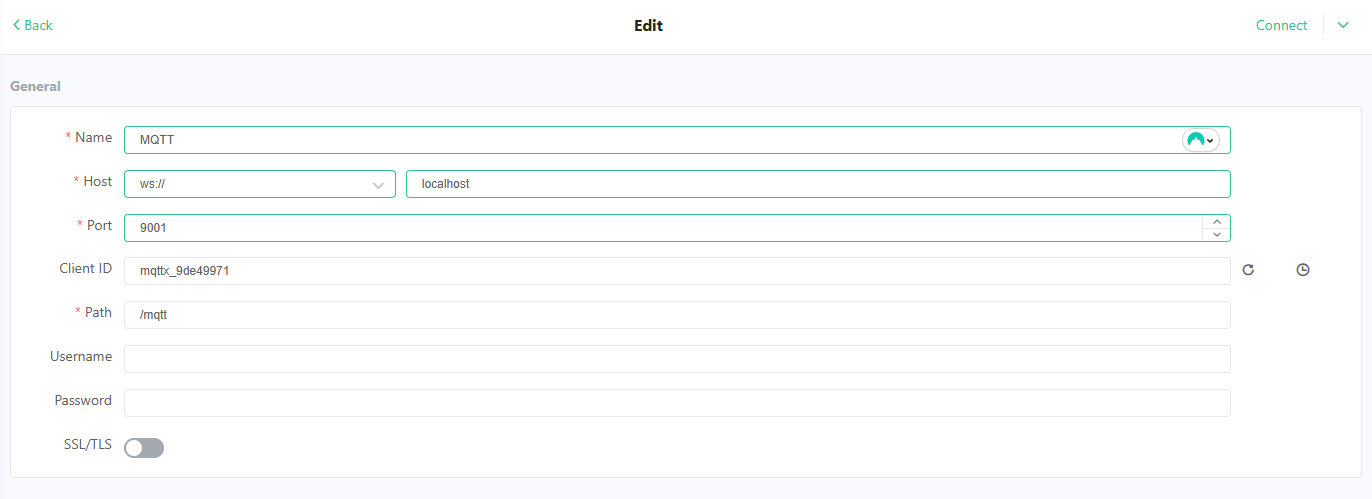
Name: whatever you wantHost:ws://localhostPort:9001Client ID: doesn't matter whatever is already filled inPath:/mqtt
And press Connect.
See the MQTTX docs for more information.
Database
You can connect to the datbase with any database explorer using your credentials. The database is
seeded with the data/seed.sql file. If you want to reseed the database, see the section above
about Docker.
And replace the UPPERCASE variables with your env variables.
Database explorer
It is useful to install a database explorer if you want to view the database show. I recommend DBBeaver